Showing posts with label CoolPCTips. Show all posts

Monday, April 15, 2013

How to Change/Edit Your PC Specifications

In this trick you will learn how you can edit your PC specification with anything you want.
Surprising? Yes it is possible.You can make your custom specification.
Change your PC specifications
It means you can make your Pentium 4 processor look like an Intel core i7 processor... ;-)

Ok now lets start the trick.

1)Open Start menu and then open Run.
2)In Run,type Regedit and hit Enter.
3)In Regedit go to HKEY_LOCAL_MACHINE then HARDWARE then DESCRIPTION then System then Central Processor and then 0.
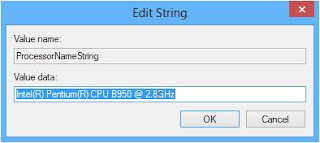
4)Now on the right side pane,click on the ProcessorNameString.It will open a box like below
Edit your System Specifications
5)Now change the highlited text with any Specification you want and press Ok.
6)You are done.Now enjoy impressing your friends...:-)
Note:-These changes are temporary and they will change to defaults as soon as you restart your system.

Monday, February 25, 2013

Change AM and PM Symbols In Windows Time With Your Own

Do you know you can change the symbols of the AM and PM in your windows tray icon?
Can't believe it?Now look at the below picture

Cool na?You can also do this cool trick just follow the below simple steps.

Note:I have made this tutorial in Windows 8 but it will work in almost all the versions of windows with almost the same steps.


1.Go to Start Menu and type intl.cpl in search box or in Run and hit Enter.
You can also doing it manually by going to Control Panel and then Region in Clock & Language Settings

Following window will appear

2.Now Click on Additional Settings
3.Click on the Time tab 
4.Change the highlited text with your own.
5.Done !
6.Enjoy


Saturday, February 16, 2013

Let Your Computer Talk

Hey guys have you ever wondered of making your computer talk with you? If NO then here is the trick of making your PC a talking PC.

Ok now lets start the trick
1.First of all open Notepad and type the following code in it
Dim message, sapi
message=InputBox("Hey Buddy! What do you want to hear??","Talking PC")
Set sapi=CreateObject("sapi.spvoice")
sapi.Speak message
2.Now save this file with .vbs ectension.
3.Now open the file,write some sentence in the box and press Ok.
4.You will hear your written sentence... :-)
Enjoy !
In this way you can also use it for childern for learning correct pronunciation.